
Your Home Dashboard and Personalized Feed: A Complete Guide
Learn how to use your Dashboard, set up your Following list, and personalize your feed so you never miss what matters to your investments.
Last updated July 6, 2026
Overview
When you log in, you land on your Home Dashboard — your personal command center for market activity. It shows a greeting, your latest AI-written digest, your active follows, any unread alerts, and a chronological feed of news, briefs, and alerts from the past 24 hours. This guide walks you through everything from first-time setup to day-to-day use.
Setting Up for the First Time
When you create a new account, a guided onboarding flow starts automatically. You can move back and forth between five steps:
- About you — Choose your investment experience level, risk tolerance, and time horizon.
- Sectors of interest — Pick one or more sectors (such as Technology, Healthcare, Financials, Energy, and others). The app prioritizes news and analysis in the areas you choose.
- Investment strategies — Select the strategies that match your style (for example, value, growth, or dividend investing) to shape screener results and recommendations.
- Video topics — Choose topics for personalized weekly videos. This step is only available on a Pro plan.
- Digest setup — Review your chosen sectors, optionally add a single stock ticker to follow, and choose how often you want your digest. Weekly is available to all users; Daily is available on Pro and higher plans (the app defaults to Weekly if Daily is not available on your plan).
When you click Finish & enter Compounder, the app saves your profile, automatically follows your selected sectors, adds any ticker you entered, and takes you to your Following page. You can update all of these preferences later in your account settings and on the Following page.
Completing Your Investment Profile
After onboarding, you can fine-tune your preferences at any time. Go to your profile menu in the top navigation and select Account. In the Preferences section, you can update your experience level, risk tolerance, time horizon, sectors of interest, investment strategies, and video topics. Changes save automatically. These settings personalize the content, recommendations, and videos you see throughout the app.
Your Home Dashboard at a Glance
Your Dashboard shows several key elements every time you log in:
- Your latest digest — An AI-written summary of everything you follow.
- Active follows — Chips showing the tickers, sectors, and themes you're currently tracking. Tap Manage to jump to your Following page.
- Unread alerts — Any real-time notifications waiting for your attention.
- Next digest schedule — Information about when your next digest arrives, with an option to generate one on demand.
Your Personalized 24-Hour Feed
Below your digest summary is a chronological feed of market activity from the past 24 hours, drawn from the stocks, sectors, and themes you follow. Each item is labeled with its type — News, Brief, or Alert — along with a title, subtitle, time posted, and related stock tickers.
- Click any news item to open the full article in a new tab.
- Click any brief or alert to view details inside the app.
- Use the toggle filters above the feed to show or hide specific item types (for example, hide News and show only Alerts).
If your feed is empty, the app will suggest that you follow stocks, sectors, or themes, with a link to your watchlist to get started.
Daily Highlights: A Market-Wide Summary
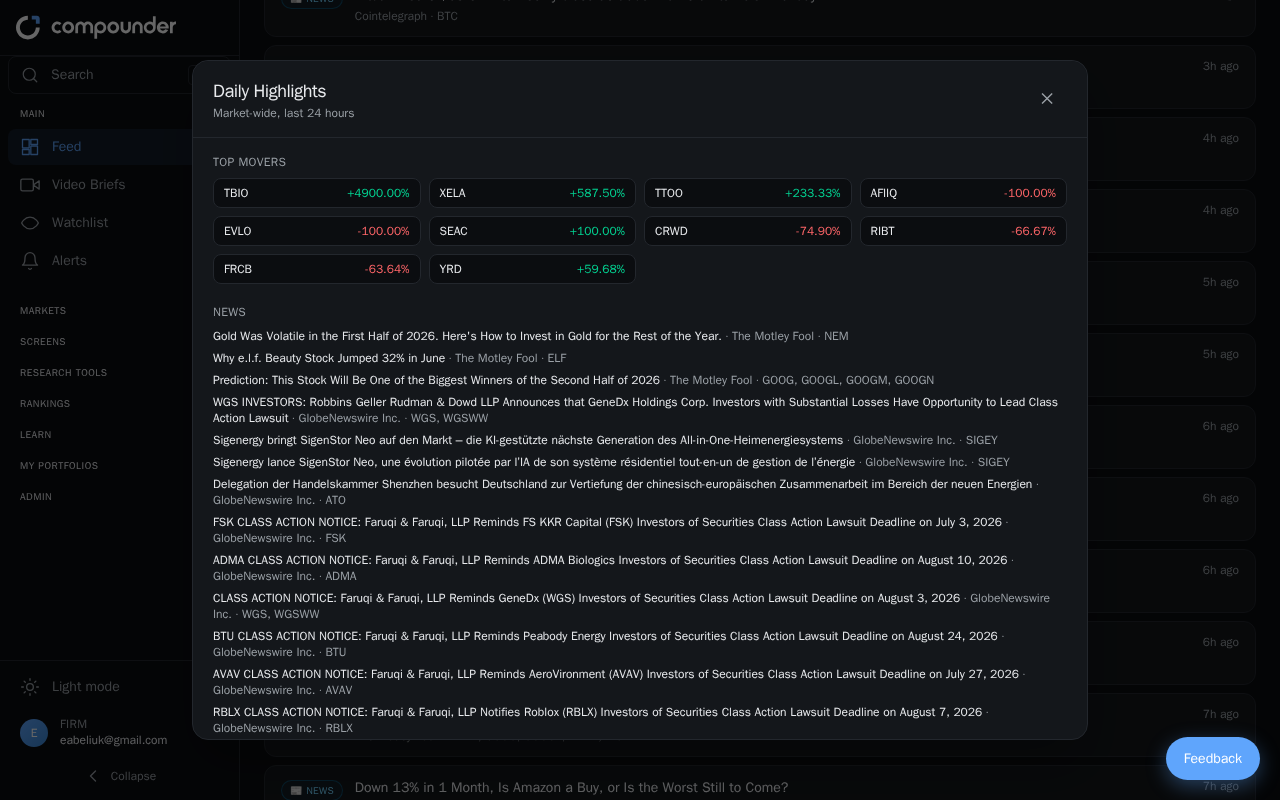
At the top of your feed, you'll find a Daily Highlights button. Clicking it opens a full-screen view with a structured snapshot of the broader market, including:
- Top movers — Stocks with the biggest percentage gains or losses.
- Notable events — Corporate filings, announcements, and significant news tied to specific stocks.
- Curated news — Articles about the stocks you follow.
- Crypto movers — Cryptocurrencies with the biggest percentage changes.
- Crypto news — Top stories from the crypto market.
- Insider activity — Trades by company insiders, including names, positions, and transaction values.
Click any stock ticker inside this view to jump to that stock's detail page, or click any news link to read the full article. Close the view by clicking the X button or tapping outside the panel.
Managing What You Follow
Your Following page (accessible from the main navigation) is your central hub for managing every stock, sector, and theme you track. The page displays a table with all your current follows and three toggleable notification channels for each:
- Digest — Include this item in your regular research summary.
- Video brief — Receive short AI-generated video updates. Available for stocks only.
- Alerts — Get real-time notifications for big moves or breaking news.
At the top of the page, you can set your global digest frequency (Weekly or Daily) and choose your preferred delivery channels (email, in-app, or both).
Adding and Removing Follows
- To add something new, click + Follow a stock, sector, or theme, then search for or select what you want to track.
- To remove a follow, click the × next to its name in the table.
- You can also add items quickly from anywhere in the app — whenever you see a + Follow button on a stock, sector, or theme card, click it to add that item to your Following list instantly without navigating to the Following page.
Customizing Notifications Per Item
You can mix and match notification settings for each follow. For example, if you want close coverage of one stock but only light updates on a broader sector, you can turn on Video briefs and Alerts for the stock while keeping only Digest enabled for the sector. Simply use the toggles in each row of the Following table to configure exactly what you want for each item.