
Watching and Organizing Your Video Briefs
Find, watch, and sort your personalized AI-generated video summaries by topic or date — including opening videos directly from email links.
Last updated July 6, 2026
What Are Video Briefs?
Video Briefs is your personal video library of short, AI-generated summaries (typically 2–3 minutes each) tailored to your portfolio, watchlist, and the themes, sectors, and stocks you follow. Each video covers a specific topic and date range, and comes with a narration script you can read instead of — or alongside — watching.
You can reach Video Briefs from the main navigation menu.
Getting Your First Videos
If your library is empty, you'll see a message prompting you to follow themes, sectors, and stocks on your Watchlist. Once you do, new videos will appear automatically on a weekly basis — no extra steps needed.
Browsing Your Video Library
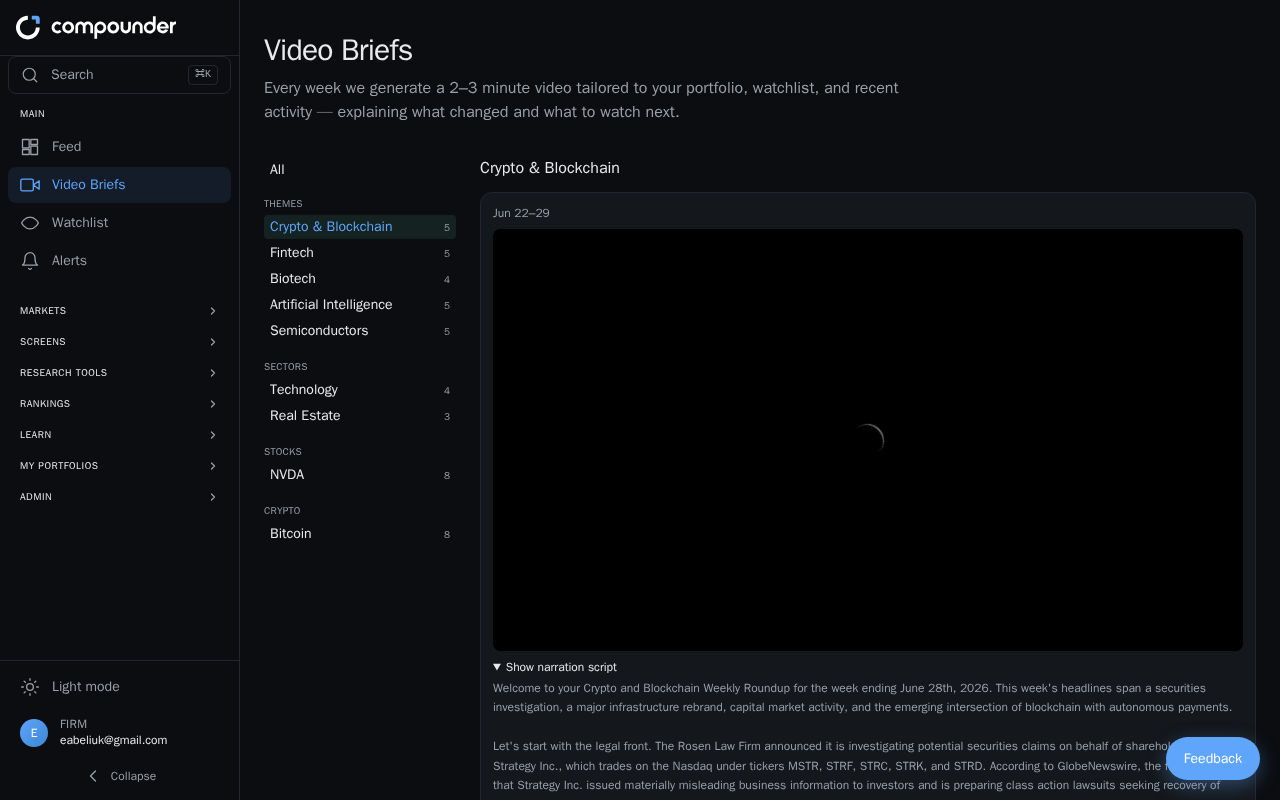
On desktop, a sticky sidebar on the left shows an index of all the categories you follow, along with a count of videos in each. The categories include:
- All — every video across all categories
- For you — videos personalized to your activity
- Themes, Sectors, Stocks, Crypto — videos grouped by those specific areas
Click any category in the sidebar to filter the video list on the right. On mobile, a dropdown menu at the top of the page replaces the sidebar and works the same way.
Each video card shows the title, category, date range, an embedded video player, and a Show narration script link to read the full spoken text.
Sorting Videos by Topic or Date
When you have All selected (either from the sidebar or the mobile dropdown), two sort options appear at the top of the video list:
- By topic — groups videos by category and item, with the newest videos shown first within each group.
- By date — displays all videos in a single newest-first list, with topic labels on each card so you can still see what each video covers.
Click either option to switch the view instantly. This setting only appears when you're viewing All videos, not when a specific category is selected.
- Open Video Briefs from the main menu.
- Select All in the sidebar (or from the dropdown on mobile) if it isn't already selected.
- Click By topic or By date to change how your videos are arranged.
- Scroll through your videos in the selected order.
Opening a Video Brief from an Email Link
When you receive an email notification about a new Video Brief, it includes a direct link to that specific video. Here's how to use it:
- Open the email containing the Video Brief notification.
- Click Open Video Brief.
- The Video Briefs library will load, automatically scroll to that video, and briefly highlight it with a colored ring so you can spot it right away.
- Watch the video using the embedded player, or click Show narration script to read the full text.
The link takes you straight to the right video — no searching or scrolling required.
Watching a Video and Reading the Script
Every video card has an embedded player you can start directly on the page. If you'd prefer to read rather than watch, click Show narration script on any card to reveal the complete spoken text for that video.