
Managing Your Watchlist: Follow Stocks, Configure Digests, and Set Up Video Briefs
Learn how to add stocks, sectors, and themes to your Watchlist, control your research digest, enable AI video briefs, and manage alerts all from one place.
Last updated July 6, 2026
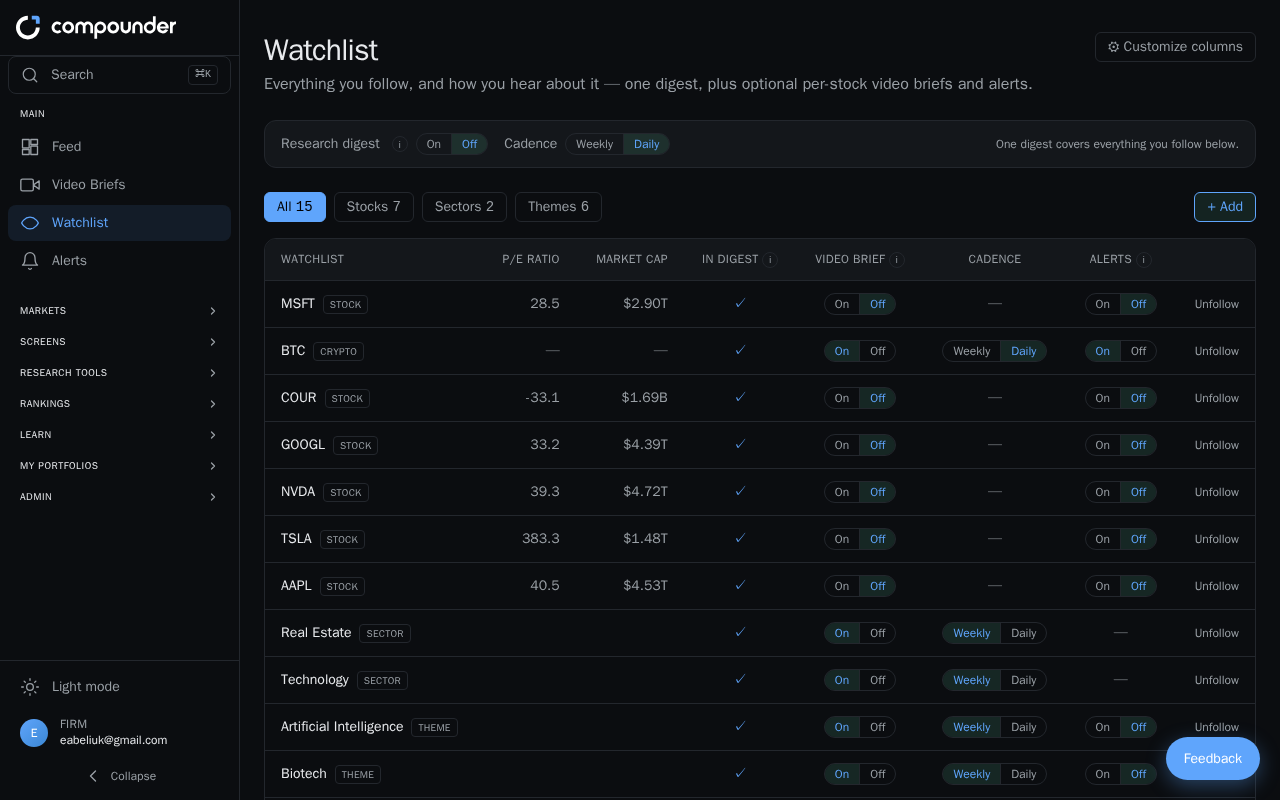
What Is the Watchlist?
Your Watchlist is a personalized hub where you follow the stocks, sectors, and themes that matter most to you. From here you control exactly how and how often you receive research updates — whether as a written digest, short AI-generated videos, or instant alerts when something significant changes.
You can reach your Watchlist at any time from the main navigation menu.
Following New Items
You can follow items from two places:
- From detail pages: On any stock detail page, sector or industry page, theme card, or investor profile page, click the + Follow button. A small panel will appear where you can choose your delivery preferences (for stocks, you can optionally enable video briefs at this step). Click Follow to confirm. The button will change to ✓ Following once the item is saved.
- From your Watchlist: Click the + Add button on the Watchlist page, search for a stock name or ticker symbol, select it from the results, set your preferences in the panel that appears, and click Follow.
Following an item requires a free account. If you aren't signed in, the Follow button will take you to the sign-in or account creation page.
Browsing Your Watchlist
Once you have followed items, your Watchlist displays them in a table (on desktop) or as cards (on mobile). Use the tabs — All, Stocks, Sectors, and Themes — to filter the view. Each tab shows a count of how many items you're following in that category.
For each item in the list you can see:
- The item's name and type (stock, sector, or theme)
- Pinned financial metrics such as Market Cap, P/E Ratio, and Revenue Growth (available for stocks)
- Whether the item is included in your research digest
- The Video brief toggle and its delivery cadence
- The Alerts toggle
- An option to unfollow the item
Managing Your Research Digest
The research digest is one comprehensive written report — delivered on your chosen schedule — covering everything you follow. Global digest controls appear in the top bar of your Watchlist page.
Turning the digest on or off
- Open your Watchlist from the main menu.
- Find the Research digest toggle in the top bar.
- Click it to turn digest emails on or off.
Turning off the digest stops all digest emails immediately. Your followed items and any video briefs or alerts you've enabled remain active and unaffected.
Changing digest frequency
- Open your Watchlist from the main menu.
- In the top bar, find the Cadence dropdown.
- Select Weekly or Daily.
Your digest will be sent on the new schedule right away. Please note that Daily delivery may require a higher subscription tier.
Enabling AI Video Briefs for a Stock
In addition to the written digest, you can receive short AI-generated video updates for individual stocks you follow.
- Open your Watchlist from the main menu.
- Locate the stock in your list.
- Toggle the Video brief switch to On in that stock's row.
- Use the Cadence dropdown in the same row to choose Weekly or Daily delivery.
Once enabled, you'll receive a video update for that stock on your chosen schedule. You can adjust or turn off video briefs at any time by returning to the same row in your Watchlist.
Setting Up Alerts
Each item in your Watchlist has an Alerts toggle. Unlike the digest or video briefs, alerts are not sent on a schedule — they fire only when a significant change occurs, such as a stock's Compounder Score moving to a new tier or a theme member breaking out. Turn the toggle on for any item where you want to be notified about these key moments.
Unfollowing Items
To stop tracking an item, find it in your Watchlist and click its unfollow option. The item will be removed from your list and will no longer appear in your digest, video briefs, or alerts.